European ASP.NET MVC Hosting

BLOG about Latest ASP.NET MVC Hosting and Its Technology - Dedicated to European Windows Hosting Customer

ASP.NET MVC Hosting - HostForLIFEASP.NET :: Helpers for HTML in ASP.NET MVC

clock March 17, 2026 07:58 by author Peter

Razor Views in ASP.NET MVC employ HTML Helpers to create HTML components with ease. HTML Helpers enable developers to create HTML elements using C# code rather than writing lengthy HTML code by hand.

They support:

  • Cut down on repetitive code
  • Connect models to data
  • Boost the readability of
  • Create UI elements with powerful typing

An example of a Razor View file

Views/Home/Index.cshtml HTML Helper Types
There are three primary categories of HTML Helpers in MVC.

TypeDescription
Standard HTML Helpers Generate simple HTML elements
Strongly Typed HTML Helpers Bind elements with Model properties
Templated HTML Helpers Automatically generate UI for model

1 Standard HTML Helpers

These helpers generate basic HTML elements.

Example: TextBox

@Html.TextBox("username")

Generated HTML:

<input type="text" name="username" />

What is this? When to Use?
Use when no model binding is required.
Example: simple login forms.

Common Standard HTML Helpers
1. TextBox
Creates a text input.
@Html.TextBox("Name")


Output
<input type="text" name="Name" />

What is this?
2. Password
Used for password fields.
@Html.Password("Password")

Output
<input type="password" name="Password" />

What is this?
3. TextArea

Used for multi-line text input.
@Html.TextArea("Address")

Output
<textarea name="Address"></textarea>

What is this?
4. CheckBox

Used for boolean values.

@Html.CheckBox("IsActive")

Output
<input type="checkbox" name="IsActive" />

What is this?
5. RadioButton

Used for selecting one option.
@Html.RadioButton("Gender", "Male") Male
@Html.RadioButton("Gender", "Female") Female


6. DropDownList
Used to create dropdown lists.
@Html.DropDownList("City", new List<SelectListItem>
{
    new SelectListItem{ Text="Ahmedabad", Value="1"},
    new SelectListItem{ Text="Surat", Value="2"}
})


Output
<select name="City">
<option value="1">Ahmedabad</option>
<option value="2">Surat</option>
</select>


What is this?
7. ListBox

Used for multiple selections.
@Html.ListBox("Skills", new MultiSelectList(ViewBag.Skills))

8. Hidden Field
Stores hidden values.
@Html.Hidden("UserId", 10)

Output
<input type="hidden" name="UserId" value="10" />


What is this?
9. Label

Displays label text.
@Html.Label("Name")

Output
<label>Name</label>

What is this?
10. ActionLink

Creates navigation links.
@Html.ActionLink("Go To Home", "Index", "Home")

Output
<a href="/Home/Index">Go To Home</a>

What is this?
2. Strongly Typed HTML Helpers

Strongly typed helpers bind directly with Model properties.

Example Model
public class Student
{
    public int Id { get; set; }
    public string Name { get; set; }
    public int Age { get; set; }
}

View declaration
@model Student

TextBoxFor
@Html.TextBoxFor(m => m.Name)

Output
<input type="text" name="Name" />

What is this?
LabelFor
@Html.LabelFor(m => m.Name)

CheckBoxFor
@Html.CheckBoxFor(m => m.IsActive)

DropDownListFor
@Html.DropDownListFor(m => m.CityId, ViewBag.CityList as SelectList)

3. Templated HTML Helpers
These helpers automatically generate UI elements.
DisplayFor
Used to display model data.
@Html.DisplayFor(m => m.Name)

Output
Peter

EditorFor
Automatically creates input elements.
@Html.EditorFor(m => m.Name)

DisplayNameFor
Displays property name.
@Html.DisplayNameFor(m => m.Name)

Output
Name

Real MVC Example (Form)
Controller

public ActionResult Create()
{
    return View();
}


View

@model Student

@using (Html.BeginForm())
{
    @Html.LabelFor(m => m.Name)
    @Html.TextBoxFor(m => m.Name)

    <br/>

    @Html.LabelFor(m => m.Age)
    @Html.TextBoxFor(m => m.Age)

    <br/>

    <input type="submit" value="Save"/>
}

Where HTML Helpers Are Used


PlacePurpose

Razor Views (.cshtml)

Generate HTML elements

Forms

Input fields

Navigation

Links

Model Binding

Bind form data

Validation

Show errors

Advantages of HTML Helpers


  • Less HTML code
  • Easy model binding
  • Cleaner Razor views
  • Supports validation
  • Strong typing support

Important Tip for Beginners
Avoid writing too much manual HTML like:
<input type="text" name="Name">

What is this?
Instead use:
@Html.TextBoxFor(m => m.Name)

This automatically works with Model Binding and Validation.

Conclusion
HTML Helpers are an important part of ASP.NET MVC that help developers generate HTML elements easily using Razor syntax. They simplify view development, support model binding, and make code cleaner. Understanding Standard, Strongly Typed, and Templated HTML Helpers will help beginners build better MVC applications.


ASP.NET MVC Hosting - HostForLIFEASP.NET :: ASP.NET MVC Architecture Core: Comprehensive Synopsis

clock March 10, 2026 08:55 by author Peter

A popular architectural style used in ASP.NET Core to create organized, scalable, and maintainable online applications is called MVC (Model–View–Controller). It guarantees a clear division of concerns by dividing an application into three primary parts.

MVC is particularly effective for enterprise-level systems where scalability, testability, and organization are crucial.

What is MVC?

  • MVC is a design pattern that divides an application into:
  • Model – Handles data and business logic
  • View – Handles user interface
  • Controller – Handles request processing and coordination
  • This separation ensures that each component has a single responsibility.

Core Components in Detail
1. Model

The Model represents the data and business rules of the application.

It is responsible for:

  • Managing application data
  • Interacting with the database
  • Applying business logic
  • Performing validations
  • Enforcing rules
  • The model does not depend on UI elements. It focuses only on data and logic.

In large applications, models often work with data access layers or ORM tools to communicate with databases.

2. View
The View is responsible for displaying data to users.

It:

  • Renders UI (HTML content)
  • Displays data provided by the controller
  • Contains minimal logic (mostly presentation logic)
  • In ASP.NET Core, views typically use Razor syntax to dynamically generate content.
  • Views should never contain business logic. Their sole responsibility is presentation.

3. Controller
The Controller acts as the bridge between the Model and View. It is responsible for:

  • Handling incoming HTTP requests
  • Processing user input
  • Calling the Model to retrieve or update data
  • Selecting and returning the appropriate View
  • Controllers manage the application flow and coordinate responses.

How MVC Works – Request Lifecycle

  1. A user sends a request through a browser.
  2. The request is routed to a specific controller.
  3. The controller processes the request.
  4. The controller interacts with the model if data is required.
  5. The controller passes data to the view.
  6. The view renders the final output.
  7. The response is sent back to the user.
  8. This structured flow improves clarity and maintainability.

Key Features of MVC in ASP.NET Core
Routing
Maps incoming URLs to specific controller actions.

Model Binding

Automatically maps HTTP request data to application models.

Validation
Supports data validation using built-in mechanisms.

Filters

Allows execution of logic before or after controller actions (e.g., authentication, logging).

Dependency Injection
Built-in support for injecting services into controllers.
Advantages of MVC Architecture

1. Separation of Concerns

Each component has a specific role, making the application easier to manage.

2. Testability

Controllers and models can be unit tested independently.

3. Scalability

Applications can grow without becoming unstructured.

4. Maintainability
Changes in UI do not affect business logic and vice versa.

5. Team Collaboration

Developers, designers, and database engineers can work independently on different layers.

MVC vs Traditional Web Forms

Compared to older approaches:

  • MVC provides more control over HTML output.
  • It promotes cleaner architecture.
  • It follows RESTful design principles.
  • It is more suitable for modern web applications.

When to Use MVC
MVC is ideal for:

  • Enterprise applications
  • Data-driven websites
  • Applications requiring clear separation of logic
  • Projects with multiple developers
  • Scalable and maintainable web solutions

Conclusion
A strong and organized method for creating web apps in ASP.NET Core is the MVC architecture. It guarantees clear design, enhanced testability, and long-term maintainability by keeping data, UI, and control logic apart. To create professional, enterprise-grade online apps, any serious ASP.NET Core developer must grasp MVC architecture.


ASP.NET MVC Hosting - HostForLIFEASP.NET :: Recognizing MVC's Fundamentals

clock March 5, 2026 09:30 by author Peter

Add the below code in a View and run the application.We will go over the fundamentals of MVC in this post. The concepts of MVC and examples of one Controller, one Model, and one View or several were found in the majority of the MVC articles. We'll talk about the prerequisites for implementing an MVC application here. Are Controller, Model, and View all required? Is it possible to create an MVC application with just a model, controller, etc.? This will enable us to comprehend the true connection between these three MVC components.

We'll talk about this while writing the code for a brief real-time issue statement. After we've finished writing all of the code, we'll also rapidly grasp the theory. Indeed, the hypothesis will be presented at the conclusion.

We will use an empty MVC web application that Visual Studio provides to demonstrate the code base, and we will add the necessary code.

Statement of the Problem
Now, let's look at a very basic example (but the topic is applicable to all MVC apps, regardless of size). Let's say we have a requirement that requires us to either construct an MVC ContactUs page or add this page to an already-created MVC application.

Now consider: Do we require a controller? Yes, is the response. An HTTP request will be sent to the application via the controller. Thus, we are unable to prevent that. We realize that in order to build an MVC application, controllers are always required. For the time being, put the Model and View on hold and begin working on the Controller. We will talk about them in a similar manner.
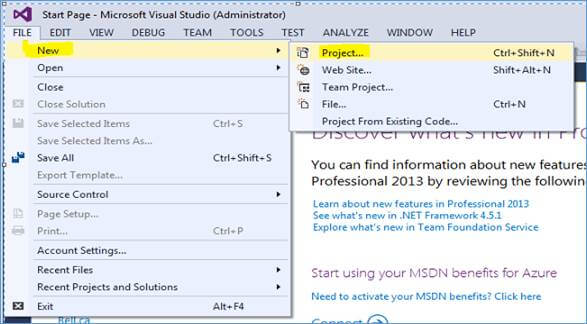
Launch an MVC application by following the instructions below:
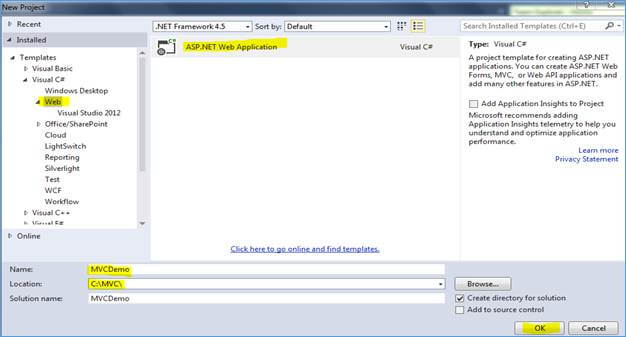
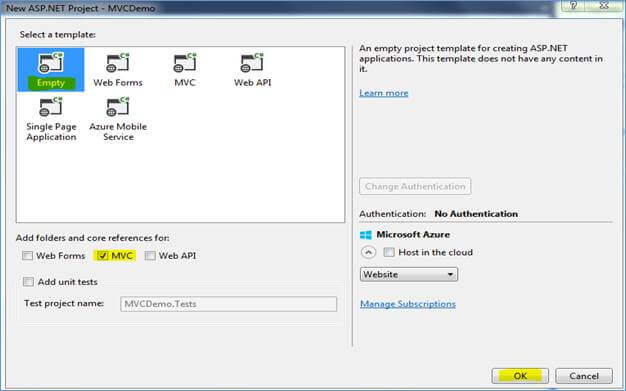
Click OK after choosing "Empty" as the template and "MVC" in the folder references. No other options need to be changed. This will provide you with a pre-made MVC folder structure without a Controller, Model, or View. We shall make those from the ground up.
Understanding the Controller
We have already discussed that Controller is essential. But, is a Controller alone is enough to create a MVC application? Again, the answer is, YES, at least in some scenarios. 
Now suppose, you get a requirement twist; the company is getting their addresses changed and for now, we just need to display “Page is under construction” on ContactUs page.
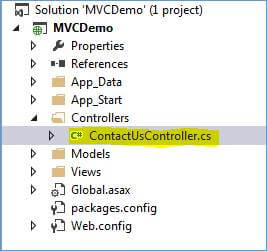
Let’s achieve this through only a Controller. Create a Controller class ContactUsController.cs in Controllers folder, as shown below: 
Add the following code in this file.
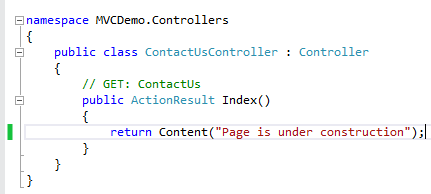

Run the application and see what we get. We get the following screen.
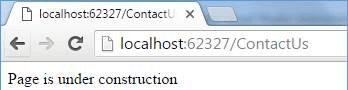
We can even return the HTML with a little code change. Use the below code instead and browse the page. Return Content("<h1>Page is under construction</h1>", "text/html"); 
We will now get this screen. 
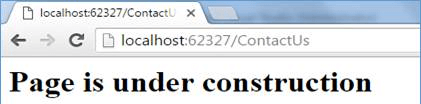
So far, we learned that the Model and the Views are not necessary to create an MVC application. A Controller can be enough in some scenarios, as discussed above. Now, let’s bring the View into the picture.

Understanding the View
View can also be used with or without Model. Let’s first use View with no Model associated with that and later, we will discuss about Model.

Now, let’s say, you get another update in requirements that for now we need to show only one office detail. So, we need to show only one address, city, country,  and contact number on contact us page as a table. As we need to add a table and some other styling, let’s use a View to achieve this. And, because we just have one static data, we can easily add that in the View itself with no Model.

Inside Views/ContactUs folder, add Index.cshtml, as shown below:
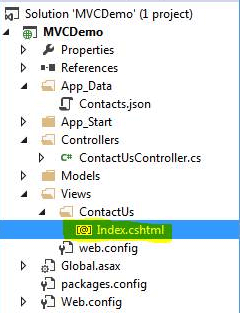
Add the below code in a View and run the application.
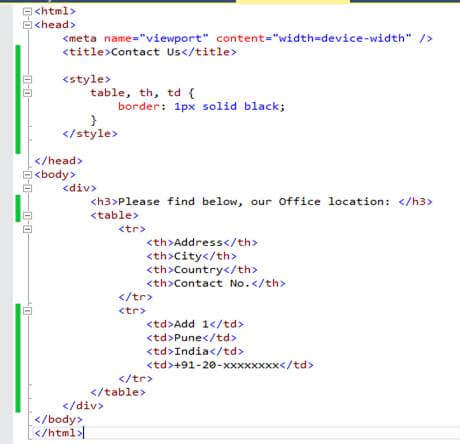
In the above code, we just created a table and fixed the data in View itself (because it’s a single fix data). Also, in earlier code, we return a small HTML from our Controller itself. Let’s change that code to the following:
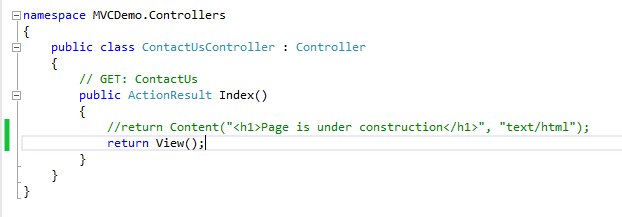
When we run the application.

Understanding the Model
Now that we are done with Controller and View, let’s discuss the limitations with not having a Model. Imagine, there is another addition in the requirement which says that we need to show all the addresses (3 as of now) of our offices, and the company will add a new address every month. In this situation, we have to have a database where addresses will keep on adding and we have to show all these addresses in our View dynamically. This is substantial work if done in a View. Let’s bring a Model in the code to make it easier and more dynamic.

Add a modal class “Contacts.cs” in Models folder. 
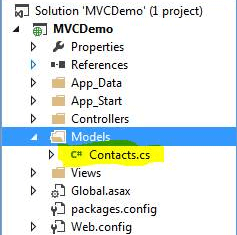
Add the below code in this class.
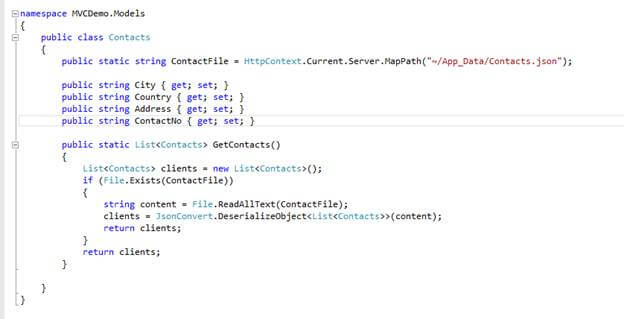
In our Model, we have 4 properties (City, Country, Address and ContactNo) which our complete office address contains. Notice, we are using a Contacts.json file as a data source here. In reality, it can be a database, a service, or a file itself whatever suits the project.

Inside GetContacts function, we are just fetching the address detail from JSON file, creating a list of Contacts, and returning a very simple modal class, fetching the data from a flat file and returning the same.

To add a JSON file, add a file “Contacts.json” in Appdata folder and add some data in to it. Now, our Model is also created. Let’s use it with some minor changes in our Controller and View. Update code as the below one and run the application.

Inside View, first add Model reference, as given below:

Now, comment the static data present inside the View and add the logic to show the data from the Model, as shown below: 
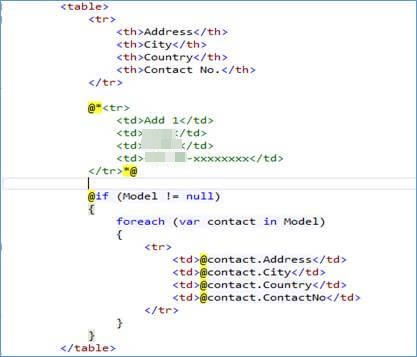
Also we needed a minor change in Controller. We need to populate the Model with data using the function we just created inside model class. And then, pass this model object to the View, so that the View can use it and show the dynamic data on screen. This is simple. Just make the following changes in Controller class:
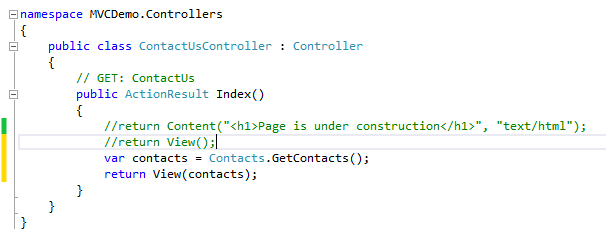
Now, run the application again. We will get the same screen but now with dynamic data.
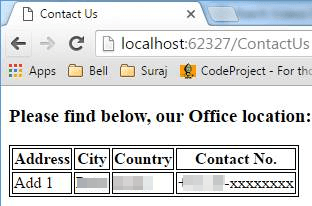
Just add more data in JSON file and refresh the page. All the data from the JSON  should be visible on screen with no code change. As an exercise, you can now try to add some more data in the JSON, add some more properties to the contact us, and do some more styling to make it better.

Summary
Now that we have seen all the code, here are few theory points we learned:

  • Controller is essential. This is a must in an MVC application. Don’t avoid that..:)
  • Controller is responsible for returning the View to the caller and if “How” part of the data is small or insignificant, it can take “How” responsibility as well.
  • View is responsible for “How” to show the data. But if “What” part of the data is small or insignificant, it can take “What” responsibility as well.
  • Model is responsible for “What” part of the data. It's Model’s responsibility to get or create the data. It can fetch the data from any data source, manipulate it if required, and return that to the Controller. Controller then passes that to the View, so that the View can use that. 


About HostForLIFE

HostForLIFE is European Windows Hosting Provider which focuses on Windows Platform only. We deliver on-demand hosting solutions including Shared hosting, Reseller Hosting, Cloud Hosting, Dedicated Servers, and IT as a Service for companies of all sizes.

We have offered the latest Windows 2019 Hosting, ASP.NET 5 Hosting, ASP.NET MVC 6 Hosting and SQL 2019 Hosting.


Month List

Tag cloud

Sign in