European ASP.NET MVC Hosting

BLOG about Latest ASP.NET MVC Hosting and Its Technology - Dedicated to European Windows Hosting Customer

ASP.NET MVC Hosting - HostForLIFEASP.NET :: Filters in ASP.NET MVC

clock April 16, 2026 08:32 by author Peter

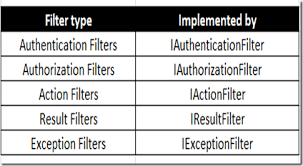
Extra logic is injected at various MVC Framework request processing levels using ASP.NET MVC Filters. Cross-cutting issues (logging, authorization, and caching) can be addressed via filters. The various types of filters that the MVC Framework offers, how to manage their execution, and how to develop and utilize filters are all covered in this article. We are able to design our own unique filters. Every time a request is made, the controller's action method must determine whether the user was authorized to carry out the action and examine its outcome. Four different kinds of filters are supported by the ASP.NET MVC Framework. ASP.NET MVC 5 introduces Authentication Filters. Each enables you to add logic at various stages of the request processing process.

Filter Type Interface Description
Authentication IAuthenticationFilter These are Runs, before any other filters or the action method.
Authorization IAuthorizationFilter These Runs first, before any other filters or the action method.
Action IActionFilter These Runs before and after the action method.
Result IResultFilter Runs before and after the action result are executed.
Exception IExceptionFilter Runs only if another filter, the action method, or the action resultthrows an exception.

Types of Filters in ASP.NET MVC and their Sequence of Execution

There are five types of Filters in ASP.NET MVC 5,

  • Authentication Filters
    Authentication filter runs before any other filter or action method. Authentication confirms that you are a valid or invalid user. Action filters implement the IAuthenticationFilter interface.
  • Authorization Filters
    The AuthorizeAttribute and RequireHttpsAttribute are examples of Authorization Filters. Authorization Filters are responsible for checking User Access; these implement the IAuthorizationFilterinterface in the framework. These filters used to implement authentication and authorization for controller actions. For example, the Authorize filter is an example of an Authorization filter.
  • Action Filters
    Action Filter is an attribute that you can apply to a controller action or an entire controller. This filter will be called before and after the action starts executing and after the action has executed. Action filters implement the IActionFilter interface that has two methods OnActionExecuting andOnActionExecuted. OnActionExecuting runs before the Action and gives an opportunity to cancel the Action call. These filters contain logic that is executed before and after a controller action executes, you can use an action filter, for instance, to modify the view data that a controller action returns.
  • Result Filters
    The OutputCacheAttribute class is an example of Result Filters. These implement the IResultFilter interface which like the IActionFilter has OnResultExecuting and OnResultExecuted. These filters contain logic that is executed before and after a view result is executed. Like if you want to modify a view result right before the view is rendered to the browser.
  • ExceptionFilters
    The HandleErrorAttribute class is an example of ExceptionFilters. These implement the IExceptionFilter interface and they execute if there are any unhandled exceptions thrown during the execution pipeline. These filters can be used as an exception filter to handle errors raised by either your controller actions or controller action results.

You can override the methods in your controller class if you want.
Creating a new custom Authentication Filter with ASP.NET MVC 5
Note.The ActionFilterAttribute class implements both the IActionFilter and IResultFilter interfaces. This class is abstract, which forces you to provide an implementation. The other classes, Authorize Attribute and HandleErrorAttribute, contain useful features and can be used without creating a derived class.

I’m going to use a custom Authentication filter to set the new principal for the current request, a custom authentication filter that will simply redirect the user back to the login page if they're not authenticated.
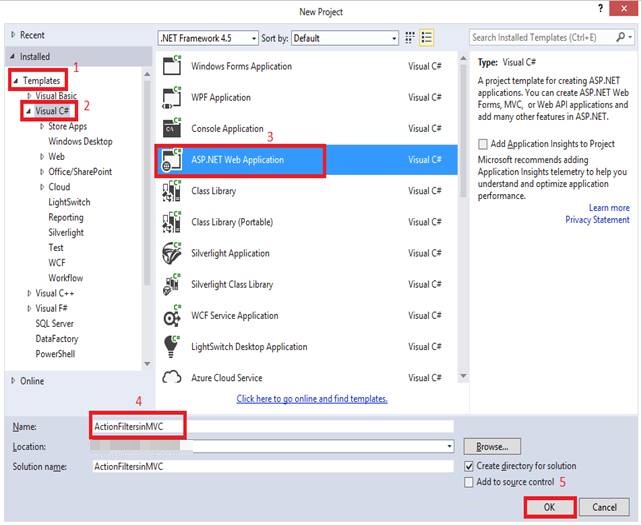

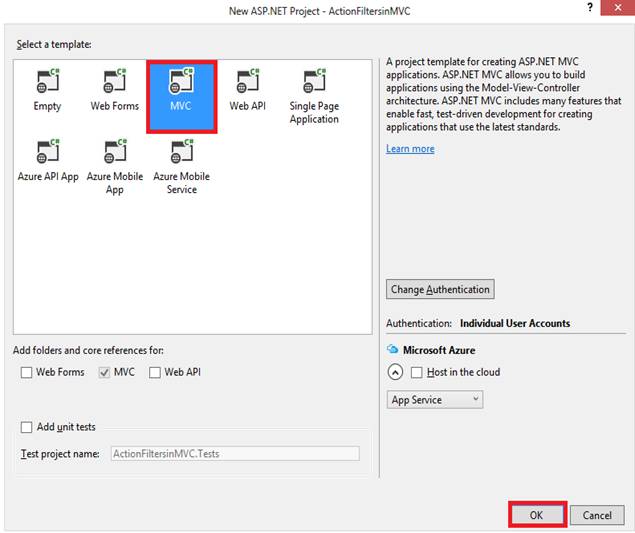
Choose MVC, and click on the “OK” button.
To create an Authentication filter, you must implement the IAuthenticationFilter. I need to create a new folder. Right-click on to your project and add a new folder.
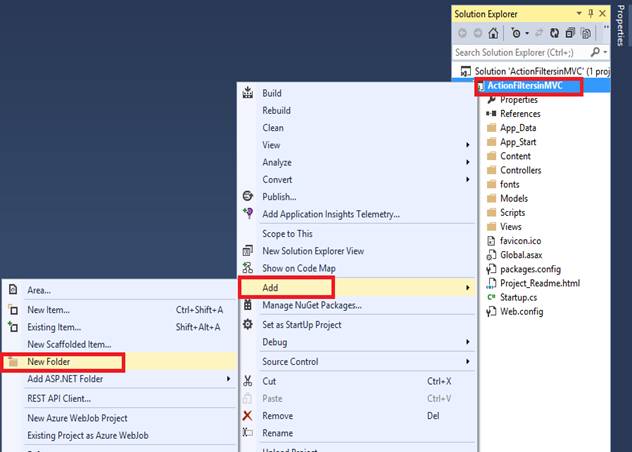
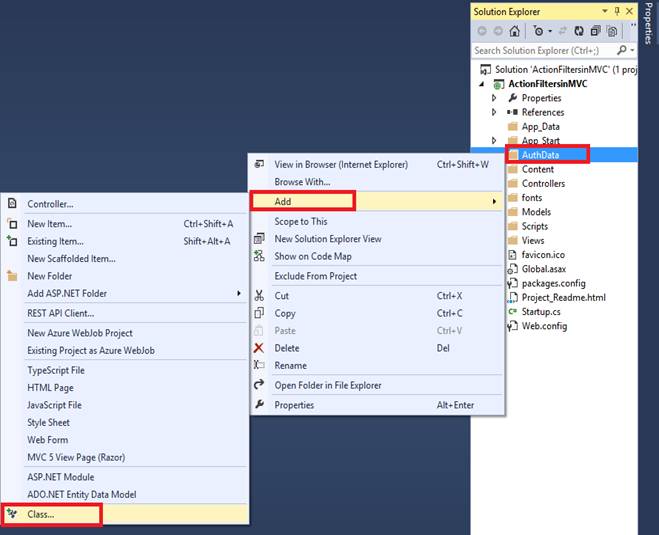
I named this folder “AuthData”. I need to add a class inside this folder. So right-click on to this folder and add a class.
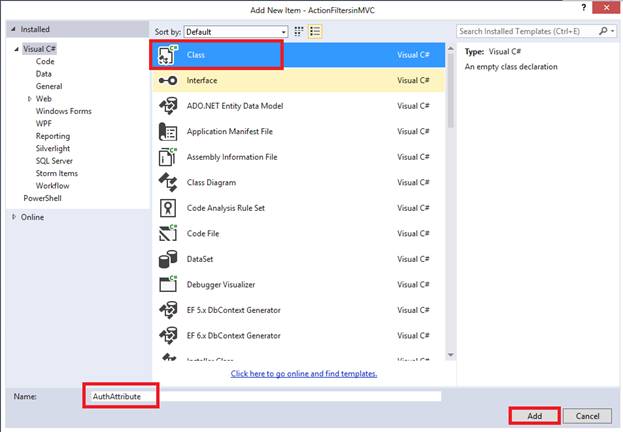
I have given “AuthAttribute” name to my class. Click on to “Add” button.
Here, we have derived the AuthAttributeclass from theActionFilterAttribute, IAuthenticationFilter class. I need to resolve it from the “ActionFiltersinMVC.AuthData” namespace.

public class AuthAttribute : ActionFilterAttribute, IAuthenticationFilter
{
    // Implementation here
}
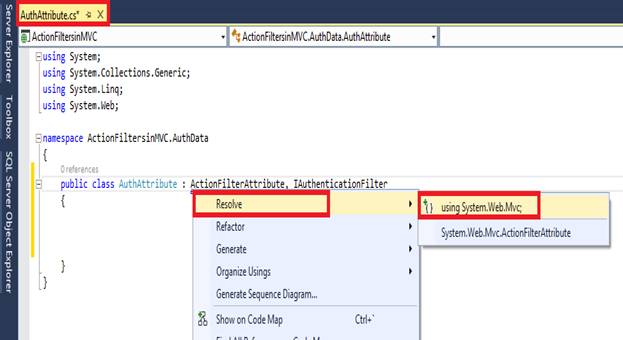
You can see the following screenshot.
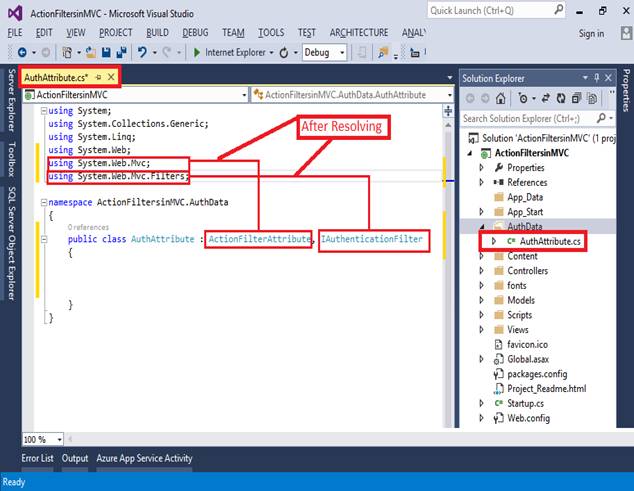

The IAuthenticationFilter interface defines two methods: OnAuthentication and OnAuthenhenticationChallenge. The OnAuthentication method is executed first and can be used to perform any needed authentication. The OnAuthenticationChallengemethod is used to restrict access based upon the authenticated user's principal.

ResloveActionFilterAttribute and IAuthenticationFilter form the “using System.Web.MVC.Filters;” namespace.
namespace ActionFiltersinMVC.AuthData
{
    public class AuthAttribute : ActionFilterAttribute, IAuthenticationFilter
    {
        public void OnAuthentication(AuthenticationContext filterContext)
        {
            // Logic for authenticating a user
        }

        // Runs after the OnAuthentication method
        public void OnAuthenticationChallenge(AuthenticationChallengeContext filterContext)
        {
            // TODO: Additional tasks on the request
        }
    }
}
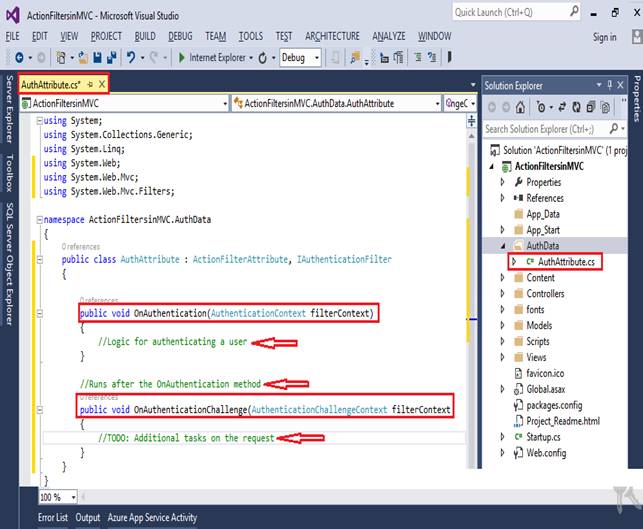

In OnAuthentication, I write code for user authentication and in OnAuthenticationChallenge, I write some code for the other tasks.
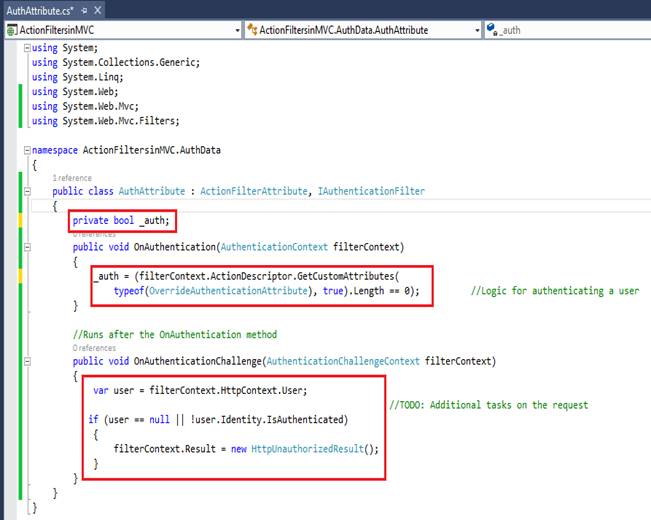
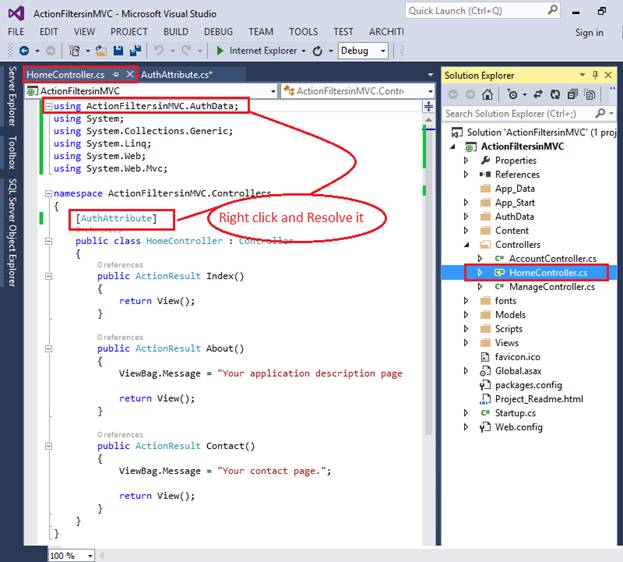
You can now test out the AuthAttribute by applying it to the HomeController class. Open up the HomeController class file, then add using statement for your AuthData namespace.
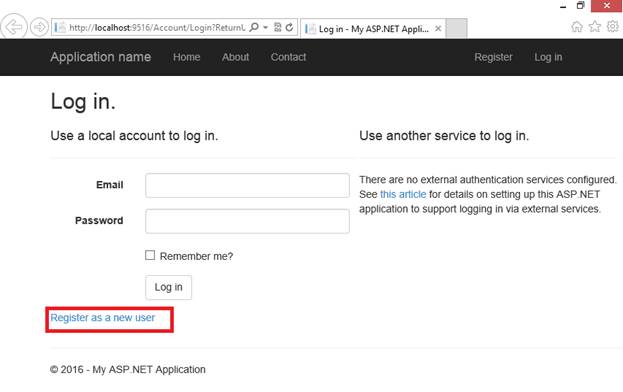
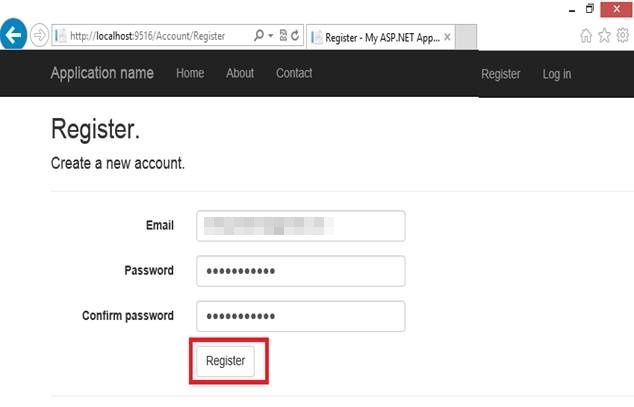
Here is my Login page, go for the new user registration.

I have used my email address to create a new password and clicked on to “Register” button.

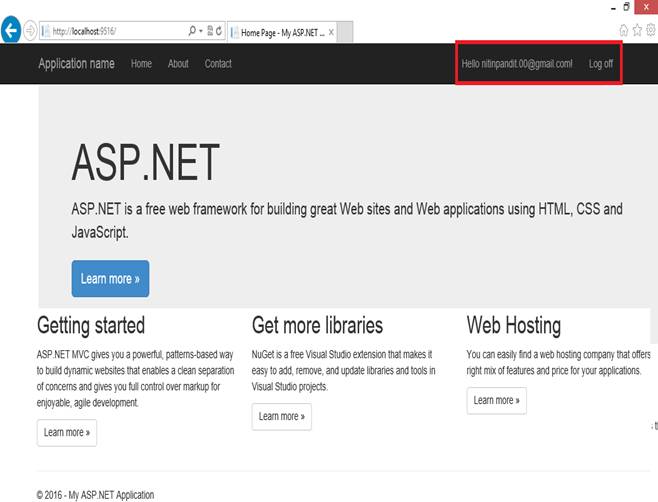
You can see, I’m logged in with my email.

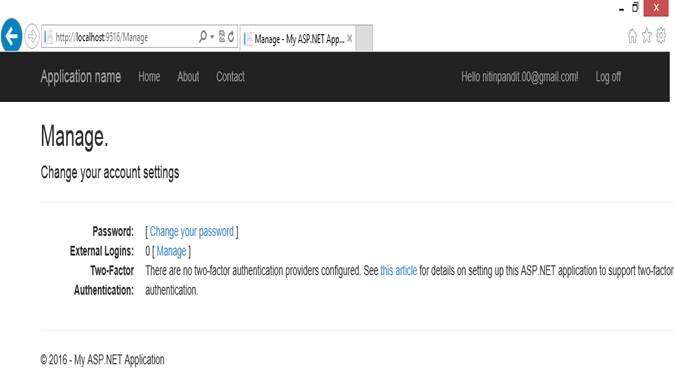
You can also manage your account setting as in the following screenshot.

Authorization Filter
These filters enforce your authorization policy ensuring that action methods can be invoked only by approved users. These filters are the filters that run before the action method is invoked. These filters implement the IAuthorizationFilter interface,
namespace system.Web.MVC
{
    public interface IAuthorizationFilter
    {
        void OnAuthorization(AuthorizationContext filterContext);
    }
}

For the Authorization, let’s make some changes in the “AuthAttribute” class.

This “AuthAttribute” class should inherit by “AuthorizeAttribute” classes. For using the AuthorizeAttribute” class, we need to add the namespace:

using System.Web.Mvc
using System;
using System.Collections.Generic;
using System.Linq;
using System.Web;
using System.Web.Mvc;

namespace ActionFiltersinMVC.AuthData
{
    public class AuthAttribute : AuthorizeAttribute {}
}
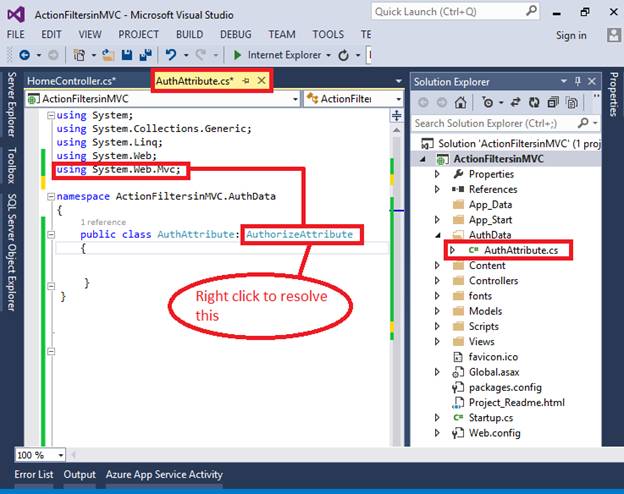

We override the AuthorizeCore(HttpContextBasehttpContext) method, this ensures that I benefit from the feature build in Authorize attribute. The constructor of the filter AuthAttribute (boolallowedParam), takes the bool value indicating whether local requests are permitted by taking advantage of the building feature of authorization attribute base class, I only have to focus the authorization logic and return true from the authorize core method.
using System;
using System.Collections.Generic;
using System.Linq;
using System.Web;
using System.Web.Mvc;

namespace ActionFiltersinMVC.AuthData
{
    public class AuthAttribute : AuthorizeAttribute
    {
        private bool localAllowed;

        public AuthAttribute(bool allowedParam)
        {
            localAllowed = allowedParam;
        }

        protected override bool AuthorizeCore(HttpContextBase httpContext)
        {
            if (httpContext.Request.IsLocal)
            {
                return localAllowed;
            }
            else
            {
                return true;
            }
        }
    }
}

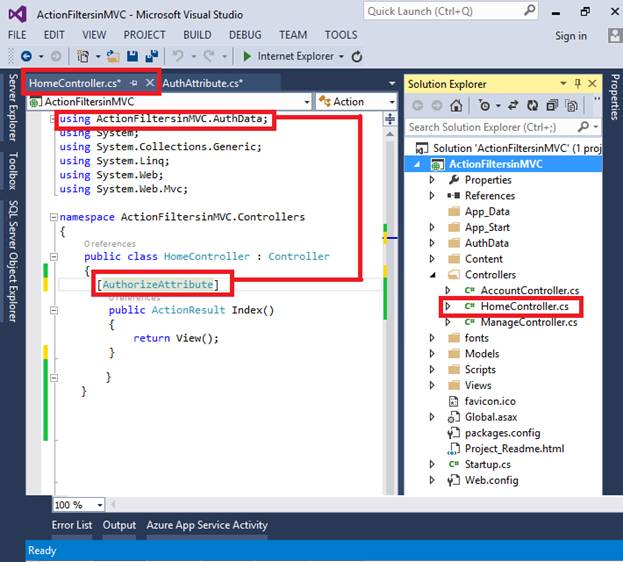
Now open the “Home Controller” and apply some code, In this, I have applied the Authorize attribute filterover the Index() method. For using the [AuthorizeAttribute] we need to add the namespace “using ActionFiltersinMVC.AuthData;”.

using ActionFiltersinMVC.AuthData;

public class HomeController : Controller
{
    [AuthorizeAttribute]
    public ActionResult Index()
    {
        return View();
    }
}
And in the About action method, we simply print a message.

using ActionFiltersinMVC.AuthData;
using System;
using System.Collections.Generic;
using System.Linq;
using System.Web;
using System.Web.Mvc;

namespace ActionFiltersinMVC.Controllers
{
    public class HomeController : Controller
    {
        [AuthorizeAttribute]
        public ActionResult Index()
        {
            return View();
        }

        public ActionResult About()
        {
            ViewBag.Message = "Hello...Peter";
            return View();
        }
    }
}

Here is the screenshot of Controller.
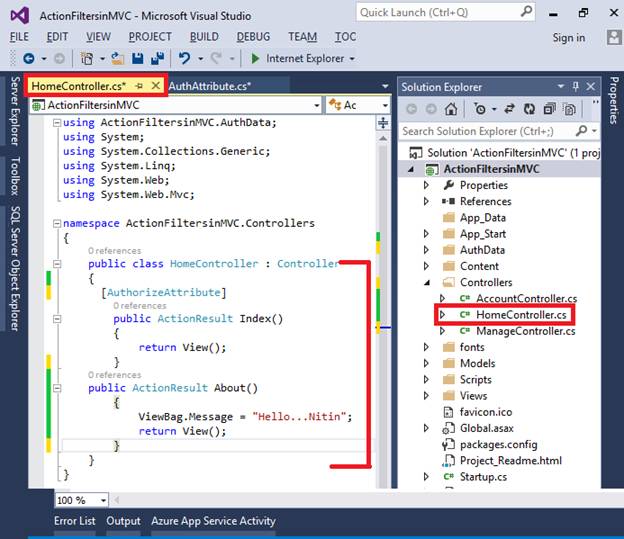

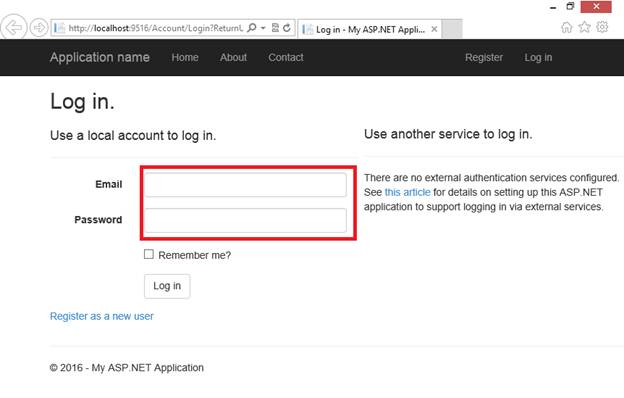
Now save the project and run the project by pressing F5. You’ll redirect on to the login page. Enter the Email and password to login to the account; I have registered myself in the Authentication filters part, so there is no need for the new registration.
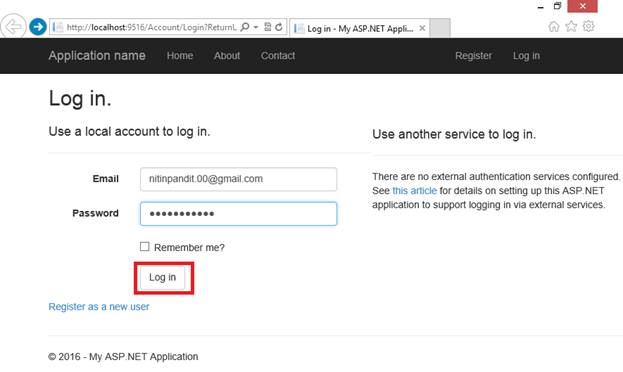
Click on to the “Log in” button.

After login, you will be redirected on to the home page.
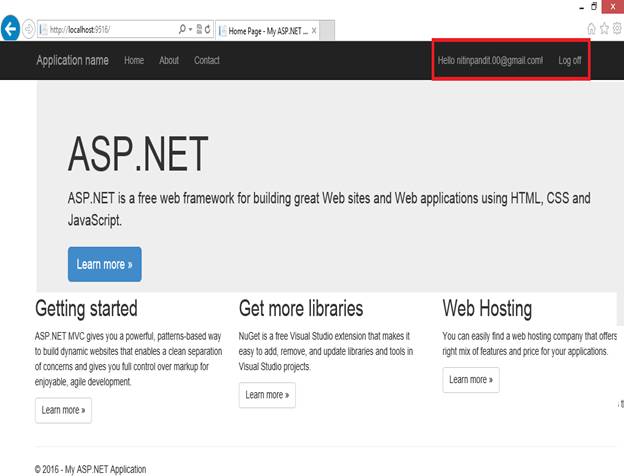

I’m going to use Authorize filter, if I’m using Authorize attribute, only authenticated users can access About() method.
using ActionFiltersinMVC.AuthData;
using System;
using System.Collections.Generic;
using System.Linq;
using System.Web;
using System.Web.Mvc;

namespace ActionFiltersinMVC.Controllers
{
    public class HomeController : Controller
    {
        //[AuthorizeAttribute]
        public ActionResult Index()
        {
            return View();
        }

        [Authorize]
        public ActionResult About()
        {
            ViewBag.Message = "Hello...Peter";
            return View();
        }
    }
}


Now build the application and run it and try to access the about page, here you can see if I log in to About page.
You can see About page.
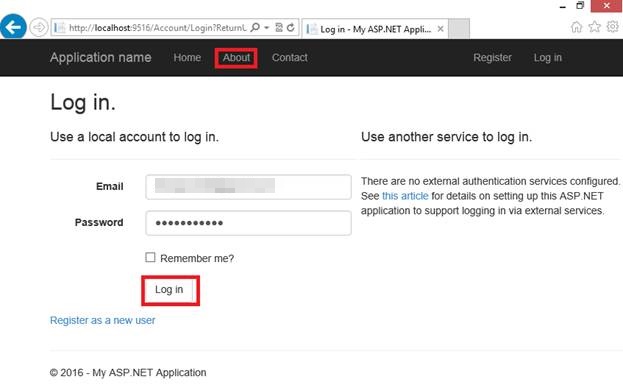

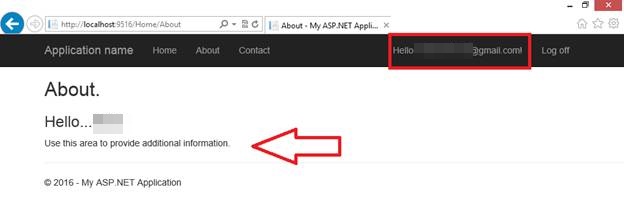
Here in the below screenshot, I have accessed the About action method.
As shown in the screenshot below, you can designate users who can only view the About page.
For the approved users, I am sending two email addresses here.

Now, create a new user, it must be a new user and create a password for the new user.

Click on to “Register” button.

You can see it’s automatically logged in to the application.

Now I’m trying to access the “About” page.
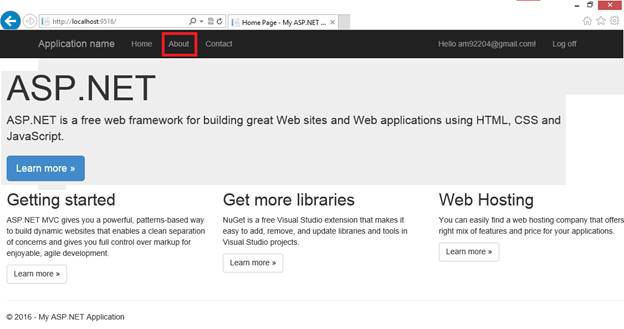

So, we are unable to access the “About” page because you have to authorize access to the about page by only two ids, which is authorized for the About action.

Action Filters
There are the following action filters,
Output Cache: This action filter caches the output of a controller action.
Handle Error: This action filter handles errors raised when a controller action executes.
Authorize: This action filter enables you to restrict access to a particular user or role.

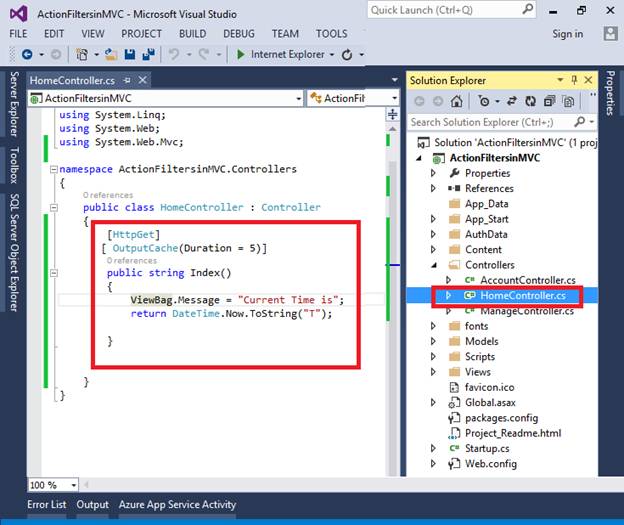
Output Cache
Example. Specifies the return value to be cached for 5 seconds.
public class ActionFilterDemoController : Controller
{
    [HttpGet]
    [OutputCache(Duration = 5)]
    public string Index()
    {
        return DateTime.Now.ToString("T");
    }
}
 

Handle Error
If any error occurs during the action execution, it will find a view named Error in the Views folder and render that page to the user.
Example.Redirect application to a custom error page when an error is triggered by the controller.
[HandleError]
public class ActionFilterDemoController : Controller
{
    public ActionResult Index()
    {
        throw new NullReferenceException();
    }

    public ActionResult About()
    {
        return View();
    }
}


Authorize

Example. Allowing only authorized users to log in the application.
public class ActionFilterDemoController : Controller
{
    [Authorize]
    public ActionResult Index()
    {
        ViewBag.Message = "This can be viewed only by authenticated users";
        return View();
    }

    [Authorize(Users = "[email protected]")]
    public ActionResult MyIndex()
    {
        ViewBag.Message = "Only Nitin Pandit can view";
        return View();
    }
}

Result Filters
Result filters are executed before or after generating the result for an action. The Action Result type can be ViewResult, PartialViewResult, RedirectToRouteResult, which derives from the ActionResult class.

Example
public interface IResultFilter
{
    void OnResultExecuted(ResultExecutedContext filterContext);
    void OnResultExecuting(ResultExecutingContext filterContext);
}

Exception Filters
Exception filters are run only if an unhandled exception has been thrown when invoking an action method. An exception may be for the following reasons,

  • Action method itself.
  • When the Action result is executed.
  • Another kind of filter.

Example
public interface IExceptionFilter
{
    void OnException(ExceptionContext filterContext);
}


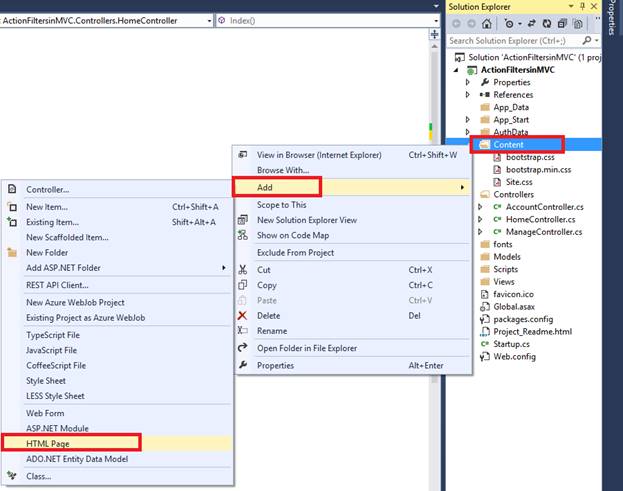
First, you need to create a RangeError.html page file within the “Content” folder in our application; we will use this file to display a simple message.

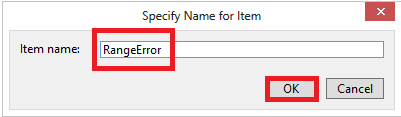
Give the name to the page, and click on to the “OK” button.
Here's the screenshot:

Here, we have derived the AuthAttribute class from the FilterAttribute class, in addition to implementing the IExceptionFilter. For using the FilterAttribute and IExceptionFilter you need to use “using System.Web.Mvc;” namespace in your MVC Application.

This exception filter is handling the instance by redirecting the user browser to a file called RangError.html in the content folder, In the ExceptionHandled method we checked the exception is not properly handled and Exception type is ArgumentOutOfRangeException then,
filterContext.Result = new RedirectResult("~/Content/RangeError.html");
filterContext.ExceptionHandled = true;

The page will be redirected to a custom error page which we have created in RangeError.html page in the content folder.
using System;
using System.Collections.Generic;
using System.Linq;
using System.Web;
using System.Web.Mvc;

namespace ActionFiltersinMVC.AuthData
{
    public class AuthAttribute : FilterAttribute, IExceptionFilter
    {
        public void OnException(ExceptionContext filterContext)
        {
            if (!filterContext.ExceptionHandled && filterContext.Exception is ArgumentOutOfRangeException)
            {
                filterContext.Result = new RedirectResult("~/Content/RangeErrorPage.html");
                filterContext.ExceptionHandled = true;
            }
        }
    }
}


attribute
In the home controller I have written down a method TestRange, this method throws ArgumentOutOfRangeException.


controller

Now, I am going to run the application, we can see the default exception handling.


ASP.NET MVC Hosting - HostForLIFEASP.NET :: Helpers for HTML in ASP.NET MVC

clock March 17, 2026 07:58 by author Peter

Razor Views in ASP.NET MVC employ HTML Helpers to create HTML components with ease. HTML Helpers enable developers to create HTML elements using C# code rather than writing lengthy HTML code by hand.

They support:

  • Cut down on repetitive code
  • Connect models to data
  • Boost the readability of
  • Create UI elements with powerful typing

An example of a Razor View file

Views/Home/Index.cshtml HTML Helper Types
There are three primary categories of HTML Helpers in MVC.

TypeDescription
Standard HTML Helpers Generate simple HTML elements
Strongly Typed HTML Helpers Bind elements with Model properties
Templated HTML Helpers Automatically generate UI for model

1 Standard HTML Helpers

These helpers generate basic HTML elements.

Example: TextBox

@Html.TextBox("username")

Generated HTML:

<input type="text" name="username" />

What is this? When to Use?
Use when no model binding is required.
Example: simple login forms.

Common Standard HTML Helpers
1. TextBox
Creates a text input.
@Html.TextBox("Name")


Output
<input type="text" name="Name" />

What is this?
2. Password
Used for password fields.
@Html.Password("Password")

Output
<input type="password" name="Password" />

What is this?
3. TextArea

Used for multi-line text input.
@Html.TextArea("Address")

Output
<textarea name="Address"></textarea>

What is this?
4. CheckBox

Used for boolean values.

@Html.CheckBox("IsActive")

Output
<input type="checkbox" name="IsActive" />

What is this?
5. RadioButton

Used for selecting one option.
@Html.RadioButton("Gender", "Male") Male
@Html.RadioButton("Gender", "Female") Female


6. DropDownList
Used to create dropdown lists.
@Html.DropDownList("City", new List<SelectListItem>
{
    new SelectListItem{ Text="Ahmedabad", Value="1"},
    new SelectListItem{ Text="Surat", Value="2"}
})


Output
<select name="City">
<option value="1">Ahmedabad</option>
<option value="2">Surat</option>
</select>


What is this?
7. ListBox

Used for multiple selections.
@Html.ListBox("Skills", new MultiSelectList(ViewBag.Skills))

8. Hidden Field
Stores hidden values.
@Html.Hidden("UserId", 10)

Output
<input type="hidden" name="UserId" value="10" />


What is this?
9. Label

Displays label text.
@Html.Label("Name")

Output
<label>Name</label>

What is this?
10. ActionLink

Creates navigation links.
@Html.ActionLink("Go To Home", "Index", "Home")

Output
<a href="/Home/Index">Go To Home</a>

What is this?
2. Strongly Typed HTML Helpers

Strongly typed helpers bind directly with Model properties.

Example Model
public class Student
{
    public int Id { get; set; }
    public string Name { get; set; }
    public int Age { get; set; }
}

View declaration
@model Student

TextBoxFor
@Html.TextBoxFor(m => m.Name)

Output
<input type="text" name="Name" />

What is this?
LabelFor
@Html.LabelFor(m => m.Name)

CheckBoxFor
@Html.CheckBoxFor(m => m.IsActive)

DropDownListFor
@Html.DropDownListFor(m => m.CityId, ViewBag.CityList as SelectList)

3. Templated HTML Helpers
These helpers automatically generate UI elements.
DisplayFor
Used to display model data.
@Html.DisplayFor(m => m.Name)

Output
Peter

EditorFor
Automatically creates input elements.
@Html.EditorFor(m => m.Name)

DisplayNameFor
Displays property name.
@Html.DisplayNameFor(m => m.Name)

Output
Name

Real MVC Example (Form)
Controller

public ActionResult Create()
{
    return View();
}


View

@model Student

@using (Html.BeginForm())
{
    @Html.LabelFor(m => m.Name)
    @Html.TextBoxFor(m => m.Name)

    <br/>

    @Html.LabelFor(m => m.Age)
    @Html.TextBoxFor(m => m.Age)

    <br/>

    <input type="submit" value="Save"/>
}

Where HTML Helpers Are Used


PlacePurpose

Razor Views (.cshtml)

Generate HTML elements

Forms

Input fields

Navigation

Links

Model Binding

Bind form data

Validation

Show errors

Advantages of HTML Helpers


  • Less HTML code
  • Easy model binding
  • Cleaner Razor views
  • Supports validation
  • Strong typing support

Important Tip for Beginners
Avoid writing too much manual HTML like:
<input type="text" name="Name">

What is this?
Instead use:
@Html.TextBoxFor(m => m.Name)

This automatically works with Model Binding and Validation.

Conclusion
HTML Helpers are an important part of ASP.NET MVC that help developers generate HTML elements easily using Razor syntax. They simplify view development, support model binding, and make code cleaner. Understanding Standard, Strongly Typed, and Templated HTML Helpers will help beginners build better MVC applications.


ASP.NET MVC Hosting - HostForLIFEASP.NET :: ASP.NET MVC Architecture Core: Comprehensive Synopsis

clock March 10, 2026 08:55 by author Peter

A popular architectural style used in ASP.NET Core to create organized, scalable, and maintainable online applications is called MVC (Model–View–Controller). It guarantees a clear division of concerns by dividing an application into three primary parts.

MVC is particularly effective for enterprise-level systems where scalability, testability, and organization are crucial.

What is MVC?

  • MVC is a design pattern that divides an application into:
  • Model – Handles data and business logic
  • View – Handles user interface
  • Controller – Handles request processing and coordination
  • This separation ensures that each component has a single responsibility.

Core Components in Detail
1. Model

The Model represents the data and business rules of the application.

It is responsible for:

  • Managing application data
  • Interacting with the database
  • Applying business logic
  • Performing validations
  • Enforcing rules
  • The model does not depend on UI elements. It focuses only on data and logic.

In large applications, models often work with data access layers or ORM tools to communicate with databases.

2. View
The View is responsible for displaying data to users.

It:

  • Renders UI (HTML content)
  • Displays data provided by the controller
  • Contains minimal logic (mostly presentation logic)
  • In ASP.NET Core, views typically use Razor syntax to dynamically generate content.
  • Views should never contain business logic. Their sole responsibility is presentation.

3. Controller
The Controller acts as the bridge between the Model and View. It is responsible for:

  • Handling incoming HTTP requests
  • Processing user input
  • Calling the Model to retrieve or update data
  • Selecting and returning the appropriate View
  • Controllers manage the application flow and coordinate responses.

How MVC Works – Request Lifecycle

  1. A user sends a request through a browser.
  2. The request is routed to a specific controller.
  3. The controller processes the request.
  4. The controller interacts with the model if data is required.
  5. The controller passes data to the view.
  6. The view renders the final output.
  7. The response is sent back to the user.
  8. This structured flow improves clarity and maintainability.

Key Features of MVC in ASP.NET Core
Routing
Maps incoming URLs to specific controller actions.

Model Binding

Automatically maps HTTP request data to application models.

Validation
Supports data validation using built-in mechanisms.

Filters

Allows execution of logic before or after controller actions (e.g., authentication, logging).

Dependency Injection
Built-in support for injecting services into controllers.
Advantages of MVC Architecture

1. Separation of Concerns

Each component has a specific role, making the application easier to manage.

2. Testability

Controllers and models can be unit tested independently.

3. Scalability

Applications can grow without becoming unstructured.

4. Maintainability
Changes in UI do not affect business logic and vice versa.

5. Team Collaboration

Developers, designers, and database engineers can work independently on different layers.

MVC vs Traditional Web Forms

Compared to older approaches:

  • MVC provides more control over HTML output.
  • It promotes cleaner architecture.
  • It follows RESTful design principles.
  • It is more suitable for modern web applications.

When to Use MVC
MVC is ideal for:

  • Enterprise applications
  • Data-driven websites
  • Applications requiring clear separation of logic
  • Projects with multiple developers
  • Scalable and maintainable web solutions

Conclusion
A strong and organized method for creating web apps in ASP.NET Core is the MVC architecture. It guarantees clear design, enhanced testability, and long-term maintainability by keeping data, UI, and control logic apart. To create professional, enterprise-grade online apps, any serious ASP.NET Core developer must grasp MVC architecture.


ASP.NET MVC Hosting - HostForLIFEASP.NET :: Recognizing MVC's Fundamentals

clock March 5, 2026 09:30 by author Peter

Add the below code in a View and run the application.We will go over the fundamentals of MVC in this post. The concepts of MVC and examples of one Controller, one Model, and one View or several were found in the majority of the MVC articles. We'll talk about the prerequisites for implementing an MVC application here. Are Controller, Model, and View all required? Is it possible to create an MVC application with just a model, controller, etc.? This will enable us to comprehend the true connection between these three MVC components.

We'll talk about this while writing the code for a brief real-time issue statement. After we've finished writing all of the code, we'll also rapidly grasp the theory. Indeed, the hypothesis will be presented at the conclusion.

We will use an empty MVC web application that Visual Studio provides to demonstrate the code base, and we will add the necessary code.

Statement of the Problem
Now, let's look at a very basic example (but the topic is applicable to all MVC apps, regardless of size). Let's say we have a requirement that requires us to either construct an MVC ContactUs page or add this page to an already-created MVC application.

Now consider: Do we require a controller? Yes, is the response. An HTTP request will be sent to the application via the controller. Thus, we are unable to prevent that. We realize that in order to build an MVC application, controllers are always required. For the time being, put the Model and View on hold and begin working on the Controller. We will talk about them in a similar manner.

Launch an MVC application by following the instructions below:

Click OK after choosing "Empty" as the template and "MVC" in the folder references. No other options need to be changed. This will provide you with a pre-made MVC folder structure without a Controller, Model, or View. We shall make those from the ground up.

Understanding the Controller
We have already discussed that Controller is essential. But, is a Controller alone is enough to create a MVC application? Again, the answer is, YES, at least in some scenarios. 
Now suppose, you get a requirement twist; the company is getting their addresses changed and for now, we just need to display “Page is under construction” on ContactUs page.
Let’s achieve this through only a Controller. Create a Controller class ContactUsController.cs in Controllers folder, as shown below: 

Add the following code in this file.


Run the application and see what we get. We get the following screen.

We can even return the HTML with a little code change. Use the below code instead and browse the page. Return Content("<h1>Page is under construction</h1>", "text/html"); 
We will now get this screen. 

So far, we learned that the Model and the Views are not necessary to create an MVC application. A Controller can be enough in some scenarios, as discussed above. Now, let’s bring the View into the picture.

Understanding the View
View can also be used with or without Model. Let’s first use View with no Model associated with that and later, we will discuss about Model.

Now, let’s say, you get another update in requirements that for now we need to show only one office detail. So, we need to show only one address, city, country,  and contact number on contact us page as a table. As we need to add a table and some other styling, let’s use a View to achieve this. And, because we just have one static data, we can easily add that in the View itself with no Model.

Inside Views/ContactUs folder, add Index.cshtml, as shown below:

Add the below code in a View and run the application.

In the above code, we just created a table and fixed the data in View itself (because it’s a single fix data). Also, in earlier code, we return a small HTML from our Controller itself. Let’s change that code to the following:

When we run the application.

Understanding the Model
Now that we are done with Controller and View, let’s discuss the limitations with not having a Model. Imagine, there is another addition in the requirement which says that we need to show all the addresses (3 as of now) of our offices, and the company will add a new address every month. In this situation, we have to have a database where addresses will keep on adding and we have to show all these addresses in our View dynamically. This is substantial work if done in a View. Let’s bring a Model in the code to make it easier and more dynamic.

Add a modal class “Contacts.cs” in Models folder. 

Add the below code in this class.

In our Model, we have 4 properties (City, Country, Address and ContactNo) which our complete office address contains. Notice, we are using a Contacts.json file as a data source here. In reality, it can be a database, a service, or a file itself whatever suits the project.

Inside GetContacts function, we are just fetching the address detail from JSON file, creating a list of Contacts, and returning a very simple modal class, fetching the data from a flat file and returning the same.

To add a JSON file, add a file “Contacts.json” in Appdata folder and add some data in to it. Now, our Model is also created. Let’s use it with some minor changes in our Controller and View. Update code as the below one and run the application.

Inside View, first add Model reference, as given below:

Now, comment the static data present inside the View and add the logic to show the data from the Model, as shown below: 

Also we needed a minor change in Controller. We need to populate the Model with data using the function we just created inside model class. And then, pass this model object to the View, so that the View can use it and show the dynamic data on screen. This is simple. Just make the following changes in Controller class:

Now, run the application again. We will get the same screen but now with dynamic data.

Just add more data in JSON file and refresh the page. All the data from the JSON  should be visible on screen with no code change. As an exercise, you can now try to add some more data in the JSON, add some more properties to the contact us, and do some more styling to make it better.

Summary
Now that we have seen all the code, here are few theory points we learned:

  • Controller is essential. This is a must in an MVC application. Don’t avoid that..:)
  • Controller is responsible for returning the View to the caller and if “How” part of the data is small or insignificant, it can take “How” responsibility as well.
  • View is responsible for “How” to show the data. But if “What” part of the data is small or insignificant, it can take “What” responsibility as well.
  • Model is responsible for “What” part of the data. It's Model’s responsibility to get or create the data. It can fetch the data from any data source, manipulate it if required, and return that to the Controller. Controller then passes that to the View, so that the View can use that. 


ASP.NET MVC Hosting - HostForLIFEASP.NET :: How Can an ASP.NET MVC Project Make Use of AI Agents?

clock February 27, 2026 07:25 by author Peter

Using contemporary APIs (OpenAI, Azure OpenAI, Hugging Face, and self-hosted LLMs), this article describes how to include AI agents into ASP.NET MVC.

What Is an AI Agent?
An AI Agent is an autonomous component capable of:

  • Understanding user input
  • Taking decisions
  • Calling tools (APIs, DB, services)
  • Updating its memory
  • Producing actions or responses
  • Triggering workflows

In an MVC project, an AI Agent often acts as:

  • Chatbot
  • Automated email writer
  • Code generator
  • Ticket classification bot
  • Data extraction worker
  • Knowledge base assistant

Project Structure (MVC)
Your MVC app will use:
Controllers/
    AiAgentController.cs
Services/
    AiAgentService.cs
Models/
    AiRequest.cs
    AiResponse.cs
Views/
    AiAgent/
        Index.cshtml


Step 1: Install Required Nuget Packages
For OpenAI-compatible agents:
Install-Package OpenAI
Install-Package Newtonsoft.Json


OR for Azure OpenAI:
Install-Package Azure.AI.OpenAI

Step 2: Create Your AI Agent Service (Backend Logic)
Create: Services/AiAgentService.cs
using OpenAI.Chat;
using OpenAI;
using System.Threading.Tasks;

namespace YourApp.Services
{
    public class AiAgentService
    {
        private readonly OpenAIClient _client;

        public AiAgentService(string apiKey)
        {
            _client = new OpenAIClient(apiKey);
        }

        public async Task<string> AskAgentAsync(string userInput)
        {
            var chat = _client.GetChatClient("gpt-4o-mini");

            var response = await chat.CompleteAsync(
                userInput
            );

            return response.Content[0].Text;
        }
    }
}


Step 3: Add the Service to Dependency Injection
Open Global.asax.cs (or Program.cs for .NET 6+ MVC)

For .NET 4.8 MVC
In UnityConfig.cs or Autofac:
container.RegisterType<AiAgentService>(
    new InjectionConstructor("YOUR_OPENAI_API_KEY")
);

For .NET 6/7 MVC
Program.cs
builder.Services.AddSingleton<AiAgentService>(new AiAgentService("YOUR_API_KEY"));

Step 4: Create Controller to Call the AI Agent

Controllers/AiAgentController.cs
using System.Threading.Tasks;
using System.Web.Mvc;
using YourApp.Services;

namespace YourApp.Controllers
{
    public class AiAgentController : Controller
    {
        private readonly AiAgentService _ai;

        public AiAgentController(AiAgentService ai)
        {
            _ai = ai;
        }

        [HttpGet]
        public ActionResult Index()
        {
            return View();
        }

        [HttpPost]
        public async Task<ActionResult> Index(string userMessage)
        {
            var aiResponse = await _ai.AskAgentAsync(userMessage);
            ViewBag.Response = aiResponse;
            return View();
        }
    }
}


Step 5: Create Razor View for Chat UI
Views/AiAgent/Index.cshtml
@{
    ViewBag.Title = "AI Agent Chat";
}

<h2>AI Agent in MVC</h2>

<form method="post">
    <textarea name="userMessage" class="form-control" rows="4" placeholder="Ask anything..."></textarea>
    <br />
    <button class="btn btn-primary">Send</button>
</form>

@if (ViewBag.Response != null)
{
    <div class="alert alert-info" style="margin-top:20px;">
        <strong>AI Agent Reply:</strong>
        <p>@ViewBag.Response</p>
    </div>
}

Your First AI Agent Is Ready
You can now run:
/AiAgent/Index

Type a message:
“Summarize this text”
“Generate email template for refund request”
“Write C# code for a stored procedure call”
“Fix my SQL query”


The agent instantly responds.

Advanced: Add Tools (Function Calling)

Agents become powerful when they can call functions inside your MVC app.

Example: Agent gets order status from your database.

Step 1: Add a Tool Method

public string GetOrderStatus(int orderId)
{
    return "Order " + orderId + " is in Packaging Stage.";
}


Step 2: Expose Tool to Agent
Most AI SDKs support function-calling like:
var response = await chat.CompleteAsync(
    messages: userInput,
    functions: new[]
    {
        new FunctionDefinition(
            "get_order_status",
            "Get order status using order ID",
            new { orderId = "number" }
        )
    });


Result:
Agent decides to call your function → Your C# method runs → Response returned back.
Real-World AI Agent Use Cases in MVC
1. Customer Support Assistant


Automatically understands user message → replies or creates ticket.

2. Form Auto-Generation
User describes what form they need → agent builds HTML form dynamically.

3. Code Generator Inside Admin Panel
Generate C# classes, views, DB queries on the fly.

4. Workflow Automation

User enters command → agent runs server-side tasks.

5. Knowledge Base Search Agent
AI agent + vector database → semantic search.

Advanced: Adding Memory to AI Agent

Short-term memory → history stored in session
Long-term memory → store in DB or vector DB (like Qdrant, Pinecone)

Session["history"] += userMessage + aiResponse;


Performance Tips & Best Practices
✔ Cache frequently used prompts

Use IMemoryCache or Redis.
✔ Avoid sending huge previous chat

Compress or summarize conversation.
✔ Always use streaming for faster response

Most SDKs support streaming tokens.
✔ Background agents for heavy tasks

Use Windows Service.

Common Mistakes Developers Make

MistakeWhy BadFix

Sending full chat on each request

slow, expensive

send only last 5 turns

No rate limiting

can exhaust API credits

use retry policy

Hardcoding API keys

big security risk

use environment variables

Not handling null/empty response

crashes

always validate

Using wrong model (too large)

expensive

use small model for simple tasks

Final Thoughts

AI Agents will become a core part of all ASP.NET MVC applications.
With just a few steps, you can:

  • Add smart chatbots
  • Automate workflows
  • Enhance admin panels
  • Add dynamic intelligence
  • Build modern AI-driven enterprise apps


ASP.NET MVC Hosting - HostForLIFEASP.NET :: ASP.NET MVC Filters: A Comprehensive Guide with Examples

clock February 4, 2026 08:48 by author Peter

ASP.NET MVC offers filters to run custom logic either prior to or following particular request processing phases. Without having to write repetitious code inside controllers, filters assist developers in managing cross-cutting issues like authentication, authorization, logging, and exception handling.

In this article, we will learn:

What filters are in ASP.NET MVC

  • Types of filters
  • Execution order of filters
  • How to create custom filters
  • Real-world use cases

What Are Filters in ASP.NET MVC?
Filters are attributes that can be applied to:

  • Controllers
  • Action methods
  • Entire application (global filters)

They allow developers to run logic before or after an action method executes.

Why Use Filters?

  • Code reusability
  • Separation of concerns
  • Cleaner controllers
  • Centralized logic

ASP.NET MVC Request Life Cycle
Understanding where filters fit in the MVC pipeline is important.

MVC Request Flow:

  • Request received
  • Routing
  • Controller initialization
  • Filters execution
  • Action method execution
  • Result execution
  • Response returned

Filters act as checkpoints during this lifecycle.

Types of Filters in ASP.NET MVC

ASP.NET MVC provides the following types of filters:

  • Authorization Filters
  • Action Filters
  • Result Filters
  • Exception Filters
  • Authentication Filters (MVC 5)

1. Authorization Filters
Authorization filters are used to check whether a user is authorized to access a resource.

Built-in Authorize Attribute

[Authorize]
public ActionResult Dashboard()
{
    return View();
}

This allows only authenticated users to access the action.

Custom Authorization Filter

public class CustomAuthorizeAttribute : AuthorizeAttribute
{
    protected override bool AuthorizeCore(HttpContextBase httpContext)
    {
        return httpContext.User.Identity.IsAuthenticated;
    }
}


Usage:
[CustomAuthorize]
public ActionResult Profile()
{
    return View();
}

2. Action Filters
Action filters execute logic before and after an action method.
Action Filter Methods

  • OnActionExecuting
  • OnActionExecuted

Example: Custom Action Filter
public class LogActionFilter : ActionFilterAttribute
{
    public override void OnActionExecuting(ActionExecutingContext filterContext)
    {
        Debug.WriteLine("Action Method Executing");
    }

    public override void OnActionExecuted(ActionExecutedContext filterContext)
    {
        Debug.WriteLine("Action Method Executed");
    }
}


Usage:
[LogActionFilter]
public ActionResult Index()
{
    return View();
}


3. Result Filters
Result filters execute before and after the action result (such as ViewResult).
Result Filter Methods

  • OnResultExecuting
  • OnResultExecuted


Example
public class ResultFilter : ActionFilterAttribute
{
    public override void OnResultExecuting(ResultExecutingContext filterContext)
    {
        Debug.WriteLine("Result Executing");
    }

    public override void OnResultExecuted(ResultExecutedContext filterContext)
    {
        Debug.WriteLine("Result Executed");
    }
}

4. Exception Filters
Exception filters handle unhandled exceptions that occur during action execution.
Example: Custom Exception Filter
public class CustomExceptionFilter : FilterAttribute, IExceptionFilter
{
    public void OnException(ExceptionContext filterContext)
    {
        filterContext.ExceptionHandled = true;
        filterContext.Result = new ViewResult
        {
            ViewName = "Error"
        };
    }
}


Register Exception Filter Globally
public static void RegisterGlobalFilters(GlobalFilterCollection filters)
{
    filters.Add(new CustomExceptionFilter());
}


5. Authentication Filters (ASP.NET MVC 5)
Authentication filters run before authorization filters and are used to verify user identity.
public class CustomAuthenticationFilter : IAuthenticationFilter
{
    public void OnAuthentication(AuthenticationContext filterContext)
    {
        // Authentication logic
    }

    public void OnAuthenticationChallenge(AuthenticationChallengeContext filterContext)
    {
        // Challenge logic
    }
}


Filter Scope Levels
Filters can be applied at different levels:

  • Global Level – Applies to entire application
  • Controller Level – Applies to specific controller
  • Action Level – Applies to specific action

Global Filter Registration Example
filters.Add(new LogActionFilter());

Order of Execution of Filters
The execution order of filters is:

  • Authentication Filters
  • Authorization Filters
  • Action Filters
  • Result Filters
  • Exception Filters

Understanding this order helps prevent unexpected behavior.

Advantages of Using Filters

  • Promotes clean architecture
  • Reduces duplicate code
  • Improves maintainability
  • Centralized handling of common logic
  • Enhances application performance

Real-World Use Case
Scenario: Logging user activity across the application.

Solution:
Create a global action filter to log:

  • Controller name
  • Action name
  • Request time

This avoids writing logging logic in every controller.

Best Practices

  • Keep filters lightweight
  • Avoid business logic inside filters
  • Use global filters wisely
  • Handle exceptions centrally
  • Use attributes only where required

Conclusion
Filters in ASP.NET MVC play a vital role in building clean, scalable, and maintainable applications. They help manage cross-cutting concerns efficiently and reduce repetitive code. Understanding filter types, execution order, and scope will help developers write better MVC applications.

Mastering filters is essential for any ASP.NET MVC developer.


ASP.NET MVC Hosting - HostForLIFEASP.NET :: HTTP Error 404.0 0 Not Found in MVC

clock January 21, 2026 08:55 by author Peter

The resource you are searching for is either temporarily unavailable, has been removed, or has had its name changed.

While working on an MVC web project today, I noticed this problem, which is frequently seen when operating websites and carrying out any CRUD (Create, Read, Update, Delete) activity. I choose to explain the solution here because there are a lot of these questions in the Stackoverflow forum. I believe most requests can be fulfilled, albeit you might not find it helpful in your situation.

I'll show you a picture of an error page:

Look at the URL in the above image. The URL is requesting a view/page to edit the record but unfortunately the page is not found. Actually the page/view is already there but the problem is, we are not supplying the correct ID or say index to edit. In other words we need an URL something like http://localhost:25349/demo/Edit/1 to edit the first record and http://localhost:25349/demo/Edit/2 to edit the second record. Yet in the preceding image we are not supplying the ID.
 
Let's fix it. Open the "Index" view of the "demo" controller and look at the existing code:

Oh! there is a comment instead of the ID parameter, so once you change it, such as in the following: 
    <td>  
        @Html.ActionLink("Edit", "Edit", new { id=item.SM_UID }) |  
        @Html.ActionLink("Details", "Details", new { id=item.SM_UID }) |  
        @Html.ActionLink("Delete", "Delete", new { id=item.SM_UID })  
    </td>  


Your application will work fine.
I hope this fix will help you.


ASP.NET MVC Hosting - HostForLIFEASP.NET :: In MVC, Handle View Without Controller Action

clock January 8, 2026 08:34 by author Peter

Why is this necessary?
Let's examine the picture that follows.

You can see that there is a corresponding controller action for every view in the image above. There is only one line of code in each of these activities. In actuality, the exact same line of code appears in each of these activities. Furthermore, this is totally superfluous. When you receive hundreds or thousands of views, just think of what you will do. Will you produce thousands or hundreds of controller actions? Of certainly not, but how can we make it right?


When we try to launch an action on a controller that doesn't exist (or when we request a view that doesn't have a corresponding action method), the MVC Framework's controller class contains a method called HandleUnknownAction().

Now we are taking advantage of the HandleUnknownAction() method to render views even when a corresponding controller method does not exist. In the image above you can see we don't have Post5.cshtml, so when I tried to access the Post5.cshtml view, it shows the following error.

Here's how to utilize a straightforward try-catch block to fix this problem and reroute the user to a PageNotFound view.


ASP.NET MVC Hosting - HostForLIFEASP.NET :: What Is MVC and Why Do We Use MVC?

clock December 10, 2025 09:23 by author Peter

What is MVC? Why use MVC? It's a very vast topic to explain. I will explain what MVC is. It’s just a three layer architecture where M stands for MODEL, V stands for VIEW, and the most important part in this architecture is CONTROLLER, like a Hero of any film. Thus, every layer in MVC is assigned with a unique responsibility. So, the View is for the look and feel as well as for positioning what the end user will actually see. 

The data and business logic are provided by the model. Therefore, the models are just classes, such as employee, student, etc., and they can communicate with the data access layer, which is a type of service that provides the data, such as a Web Service or WCF Service. As I indicated earlier, the controller is the core of MVC and handles both layers, much like a movie hero. For this reason, the controller is often referred to as the Model-View coordinator.


When an end user sends an action like Add Customer, update customer, go to home or whatever, it first comes to the controller. If the controller says OK, let me search for the appropriate model for it, it then returns it  to the View. In the third diagram here, the view layer can be a ASPX View or Razor View, or Engine View, which is mostly used in MVC architecture. After searching the appropriate Model, go to the controller. Now, it is the controller's responsibility to send the information that comes from the Model sent to the View, which can be Razor View or ASPX View as these are the advantages of the three layer architecture. A user, now, has more flexibility.

Now, let's talk about why MVC? Why is MVC more reliable than others, like Web forms? Let's discuss why only MVC does not have Web forms. Let's have some background approaches of ASP.NET. This image will explain more scenarios of the difference between MVC and Web forms. Let's view it.

Let’s start with Windows background, about Microsoft at the start. Microsoft introduced it with the word visual and Microsoft wanted the same success story as Windows used in programming a lot of languages like COBOL, C++, and DB’S. All these languages do not have any Visual effect, so if you want to fix a button in C++, actually you have to write the code for it. Thus, Microsoft ventured something called Visual programming or RAD programming (Rapid App development), so they set that for this, rather than programmer code for this, so  for creating a window Microsoft introduced tool box. Due to this, they launched Visual Studio and again in programming language, Microsoft got success. At that time, power builder was to be completely replaced by VB, like VC++ was replaced by C++ and VF (Visual FoxPro) almost killed it and it replaced DB so Microsoft achieved success.

The RAD programming is great but it leads to some issues  -- the issue is at the backend of the code. In other words, when the programmers drag and drop, the code is generated in partial class. Let's discus some of the drags of this RAD programming:
 
Problem no 1: View Based architecture for an Action Based requirement
If user sends an action, what happens in the page life cycle is that the  life cycle just calls a complex structure, and the page loads the page in,  and you know what other kind of life cycles get executed, and then runs the required event. Now it’s a really complicated method. What should happen is  this is a required event, not one that runs other events. So what happened in this scenario when the end user sends a request as an action is it then goes to the View first, and again runs a complicated life cycle. In other words, you go to the complicated life cycle, but the  logical approach should be to go to action directory; that means once the user sends the action request it should actually map to a method inside the program, and  the method gets invoked, runs all the necessary logic for the action, and then it's invoked the required view and that would actually happen in  MVC.
 
Problem no 2: Behind code is not reusable
So the connected problem for selecting bad architecture was that the behind code was not reusable so the RAD architecture is not usable but in MVC we can code reusable code again and again.
 
Problem no 3: Html is not the only response type

Mostly the web pages are on HTML but in case of xml if your application is communicating with languages like JavaScript, probably its sends it to Jason then you would like to invoke the action but the action can have different kinds of response types depending on the situation.
 
Problem no 4: Flexible combination of view+data
So Web Forms is a View based architecture  -- always view has been decided but in the case of MVC what happened is it first hits to controller so the possibility of combining is more in the case of MVC but not in the case of Web Forms. Why? Because the view always fixed. 
 
Problem no 5: Behind Code
We have easy way of unit testing  in MVC, which  is the option of a Unit test after creating a new project but in the web it would quite difficult to handle.
 
So the solution of these problem is the simple structures, just MVC in this diagram, the first line shows RAD or WEB FORMS architecture which will be in the form of aspx which is divided into two parts --  one is view and the other is behind code which is called the middle layer, which has the business logic and this logic calls the DAL data access layer. The problem is the first time it comes in the view. But in MVC its behind code is controller and first receives the request and then sends to the view and model as mentioned in the diagram.


ASP.NET MVC Hosting - HostForLIFEASP.NET :: From ASP.NET WebForms to ASP.NET Core MVC

clock November 25, 2025 07:31 by author Peter

Here is a comprehensive essay that compares the features of ASP.NET WebForms with their equivalents in ASP.NET Core MVC, replete with definitions, goals, creation instructions, and examples. This can be used straight away as a blog post.


One of Microsoft's first frameworks for creating dynamic webpages was ASP.NET WebForms. Like Windows Forms, it offered drag-and-drop controls, code-behind, postback handling, and event-driven programming.

However, WebForms became obsolete as web development progressed because of:

  • Heavy ViewState
  • Low performance
  • Tight coupling
  • Limited testability
  • Difficulty in maintaining clean separation of concerns

ASP.NET Core MVC was introduced to solve these challenges with a modern, lightweight, testable, and scalable architecture.

This article explains:

  • WebForms features
  • Their ASP.NET Core MVC replacements
  • Purpose of each
  • Examples showing how things are done in MVC

1. WebForms vs ASP.NET Core MVC – Feature Comparison Table

WebForms FeatureASP.NET Core MVC ReplacementPurpose / Explanation
ASPX Pages Razor Views (.cshtml) Clean HTML + C# without ViewState; faster rendering
Code-behind (.aspx.cs) Controller Actions Controller handles requests instead of page lifecycle
Master Pages Razor Layout (_Layout.cshtml) Reusable template for common UI (header/footer)
User Controls (.ascx) Partial Views / View Components Reusable UI blocks
Server Controls (GridView, TextBox, etc.) HTML + Tag Helpers Lightweight, more control over HTML output
PostBack & ViewState Model Binding + HTTP verbs (GET/POST) Cleaner request handling without ViewState overhead
Page Life Cycle Middleware + MVC Request Pipeline Structured, testable request processing
Validation Controls Data Annotations + jQuery Validation Model-level validation
Data Binding (Eval, Bind) Strongly Typed Models Compile-time checking, safer and cleaner
Events (Button Click) Controller Actions (OnPost, OnGet) Clear routing-based action handling
Web.config settings appsettings.json, Program.cs Cleaner configuration with dependency injection

2. How MVC Replaces WebForms – Explanation with Examples

2.1 ASPX Page → Razor View
WebForms

Default.aspx
<asp:Label ID="lblMessage" runat="server"></asp:Label>
<asp:Button ID="btnClick" Text="Click Me" runat="server" OnClick="btnClick_Click" />


Default.aspx.cs
protected void btnClick_Click(object sender, EventArgs e)
{
    lblMessage.Text = "Hello World!";
}

ASP.NET Core MVC Replacement: Razor View + Controller
Controller
public class HomeController : Controller
{
    public IActionResult Index()
    {
        return View();
    }

    [HttpPost]
    public IActionResult ShowMessage()
    {
        ViewBag.Message = "Hello World!";
        return View("Index");
    }
}

Razor View (Index.cshtml)
<form method="post" asp-action="ShowMessage">
    <button type="submit">Click Me</button>
</form>

<h3>@ViewBag.Message</h3>

2.2 Master Pages → Razor Layout
WebForms

Site.Master

<asp:ContentPlaceHolder ID="MainContent" runat="server"></asp:ContentPlaceHolder>

ASP.NET Core MVC Replacement
Views/Shared/_Layout.cshtml
<!DOCTYPE html>
<html>
<body>
    <header>
        <h1>My MVC App</h1>
    </header>

    <div class="content">
        @RenderBody()
    </div>
</body>
</html>

Use layout inside view
@{
    Layout = "_Layout";
}

2.3 User Controls (.ascx) → Partial Views
WebForms

Header.ascx
<h2>Welcome User</h2>

ASP.NET Core MVC Replacement

Views/Shared/_Header.cshtml
<h2>Welcome User</h2>

Use partial:
@await Html.PartialAsync("_Header")

2.4 Server Controls → Tag Helpers
WebForms

<asp:TextBox ID="txtName" runat="server" />
<asp:Button ID="btnSubmit" runat="server" Text="Submit" />


ASP.NET Core MVC Replacement
<input asp-for="Name" class="form-control" />
<button class="btn btn-primary">Submit</button>

2.5 ViewState → Model Binding
WebForms

Uses ViewState automatically – very heavy.
ASP.NET Core MVC Replacement

Controller
[HttpPost]
public IActionResult Save(UserModel model)
{
    return Content(model.Name);
}

View
<input asp-for="Name" />

No ViewState
Pure model binding

2.6 Validation Controls → Data Annotation Validation
WebForms
<asp:RequiredFieldValidator ControlToValidate="txtName" ErrorMessage="Name required" />

ASP.NET Core MVC Replacement
Model
public class UserModel
{
    [Required]
    public string Name { get; set; }
}


View
<input asp-for="Name" />
<span asp-validation-for="Name"></span>


3. Creating an ASP.NET Core MVC Project – Step-by-Step
Step 1: Create Project
Visual Studio →
Create New Project → ASP.NET Core Web App (Model-View-Controller)

Step 2: Project Structure

  • Controllers
  • Views
  • Models
  • wwwroot
  • appsettings.json

Step 3: Create Model
public class Employee
{
    public int Id { get; set; }
    public string Name { get; set; }
}

Step 4: Create Controller
public class EmployeeController : Controller
{
    public IActionResult Index()
    {
        return View();
    }
}


Step 5: Create View
Views/Employee/Index.cshtml

<h2>Employee List</h2>


4. Why ASP.NET Core MVC Is Better than WebForms

  • No ViewState → Faster pages
  • Better control over HTML
  • Follows MVC pattern (clean architecture)
  • Works cross-platform (Windows, Linux, Mac)
  • Lightweight and high performance
  • Fully testable
  • Modern front-end integrations (Bootstrap, Angular, React)

5. Conclusion
ASP.NET Core MVC is a modern replacement for WebForms.
It removes the limitations of WebForms like ViewState, server controls, postback, and complex lifecycle.

Instead, it offers:

  • Razor Views
  • Controllers
  • Strongly typed models
  • Tag Helpers
  • Layout pages
  • Middleware pipeline

Understanding how WebForms features map to MVC features helps developers migrate old systems or learn ASP.NET Core efficiently.


About HostForLIFE

HostForLIFE is European Windows Hosting Provider which focuses on Windows Platform only. We deliver on-demand hosting solutions including Shared hosting, Reseller Hosting, Cloud Hosting, Dedicated Servers, and IT as a Service for companies of all sizes.

We have offered the latest Windows 2019 Hosting, ASP.NET 5 Hosting, ASP.NET MVC 6 Hosting and SQL 2019 Hosting.


Month List

Tag cloud

Sign in
